

Why should I remove Search.searchetg.com virus?
Search.searchetg.com virus is a threat on the web that targets travelers or people who use public transportation services on a regular basis. Some people are attracted to use it as their search engine as the sites appear to be very attractive and helpful. The site also offers fast access to local and global weather forecasts. You can also find a link to the Uber service there. While these links are perfectly handy and lead to the right sites, search results Searchetg.com provides are what cause the problem. This site is different from the regular search engines as it is focused on supporting third-party content. Search.searchetg.com hijack is a common issue with this software. Most of the search engines and other products by this company branch are considered potentially unwanted and are categorized as browser hijackers. These viruses are not dangerous yet they can still have some negative effect on your system. That is why Search.searchetg.com virus removal is imperative.
[[ad]]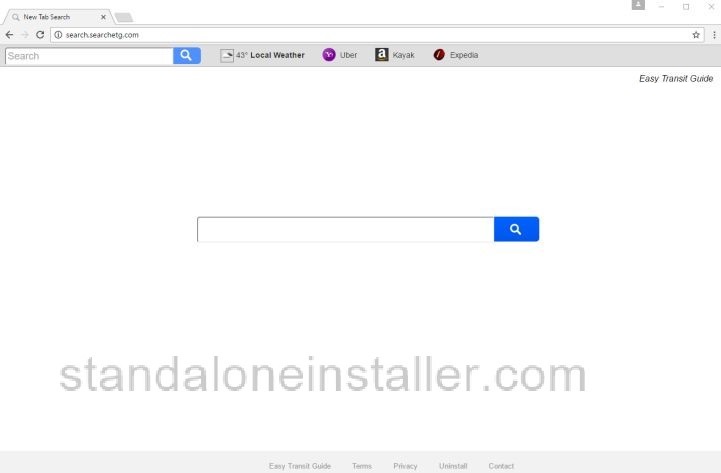
Learn also: How to remove delta search?
Search.searchetg.com virus removal methods
One of the easiest ways to remove this virus from your system is to install an anti-spyware program and run a full system scan. This is an automatic way to remove it. Programs such as Reimage and Malwarebytes Anti Malware can be useful for Search.searchetg.com virus removal.
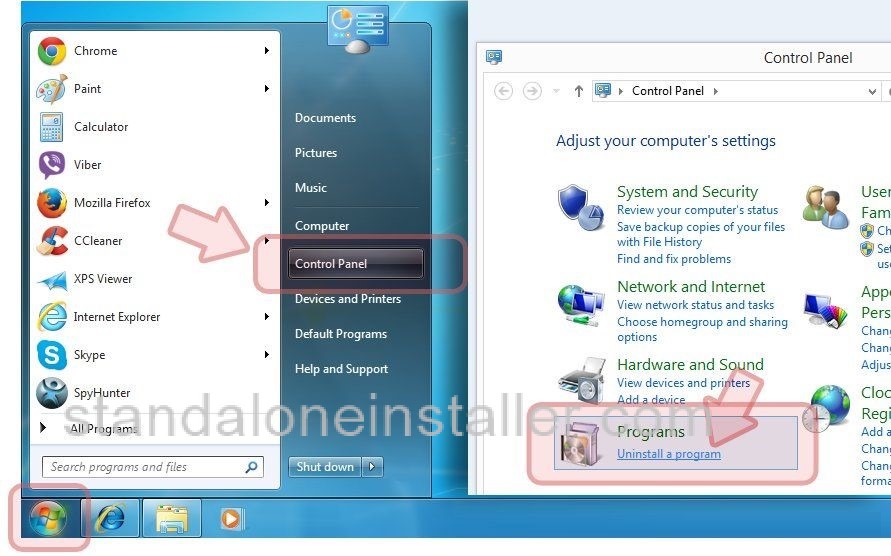
Search.searchetg.com virus removal from Windows 7 / Vista / XP systems
• Click Start ? Control Panel ? Programs and Features
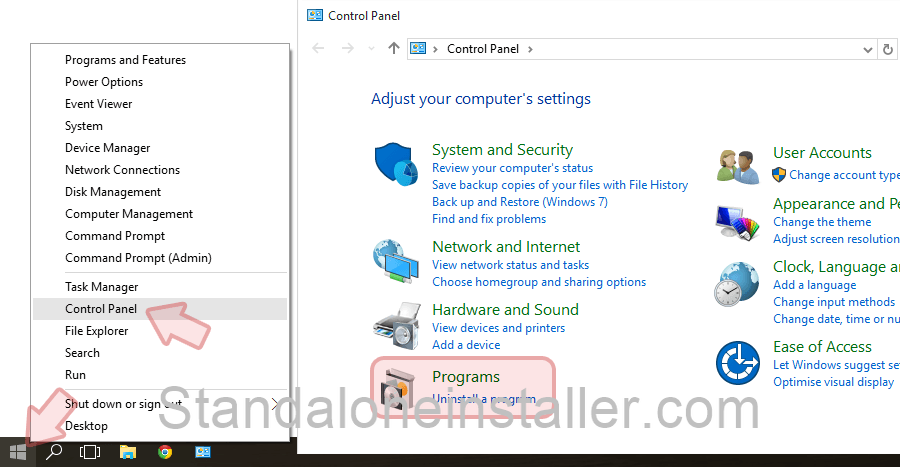
• Search.searchetg.com virus removal from Windows 10 / Windows 8 systems
• Right-click in the bottom left corner of the screen. Once Quick Access Menuappears chooseControl Panel and Uninstall a Program.
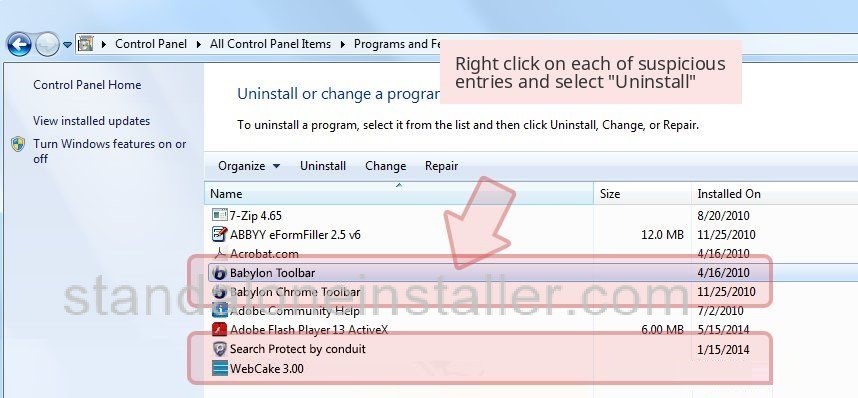
 Uninstall Search.searchetg.com and related programs
• Find Search.searchetg.com or any other suspicious programs and remove them. To save, click OK.
Remove Search.searchetg.com from Windows shortcuts
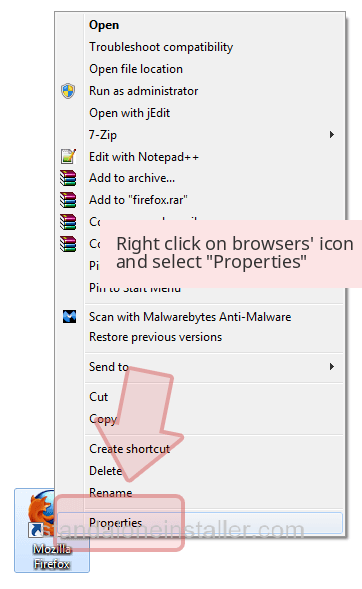
• Right click on the shortcut of Mozilla Firefox and choose Properties.
• Go to Shortcut and check the Target field. Remove unwanted URL associated with the virus.
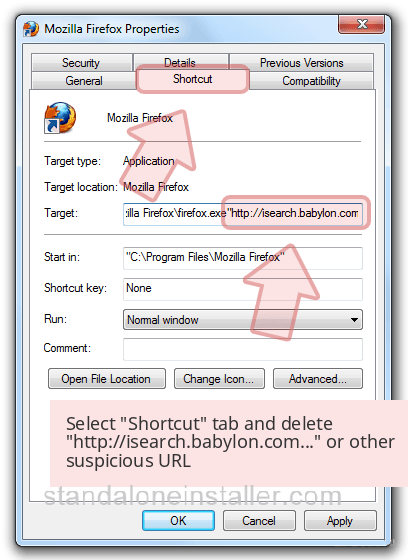
Follow the above steps with all browsers' shortcuts (Internet Explorer and Google Chrome).
Search.searchetg.com virus removal from Internet Explorer (IE)
Find the Search.searchetg.com extension in the list of browser extensions and uninstall it. Remember that the virus may not be called Searchetg, searchetg.com - you need to check and get rid of all suspicious ones.
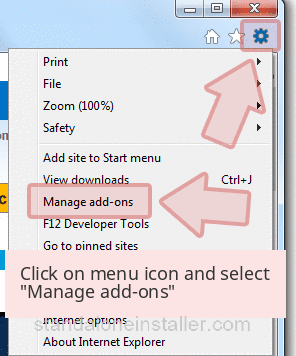
Remove unsafe add-ons• Open Internet Explorer, click on the Gear icon on the top right corner of the browser and select Manage Add-ons.
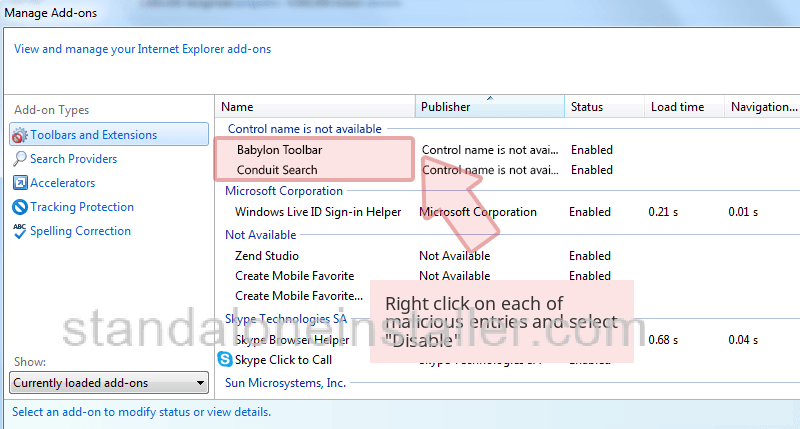
• Manage Add-ons window would be visible so find Search.searchetg.com and other suspicious plugins. Click Disable.
Change your homepage:
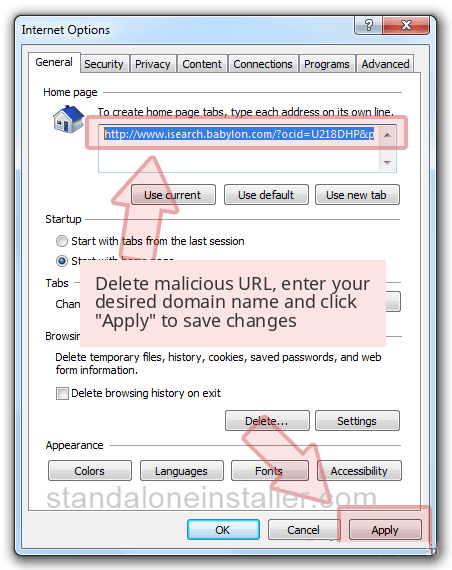
• Click on the gear icon on the top right corner and choose Internet Options. Stay in General tab.
• Delete malicious URL and enter the domain name of your choice. To save changes, click Apply.
Reset Internet Explorer
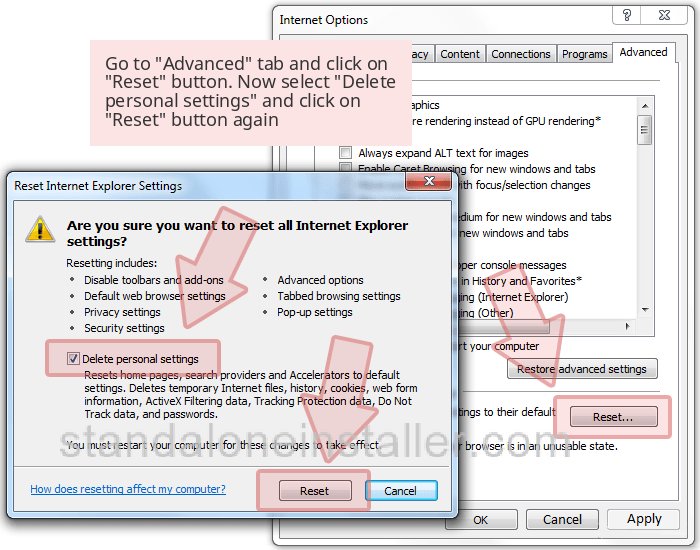
• Click on the gear icon again and choose Internet options. Go to Advanced tab. Now Reset.
• Check Delete personal settings and choose Reset again for Search.searchetg.com removal.
Search.searchetg.com virus removal from Microsoft Edge
Find the list of browser extensions one belonging to Search.searchetg.com and delete it.
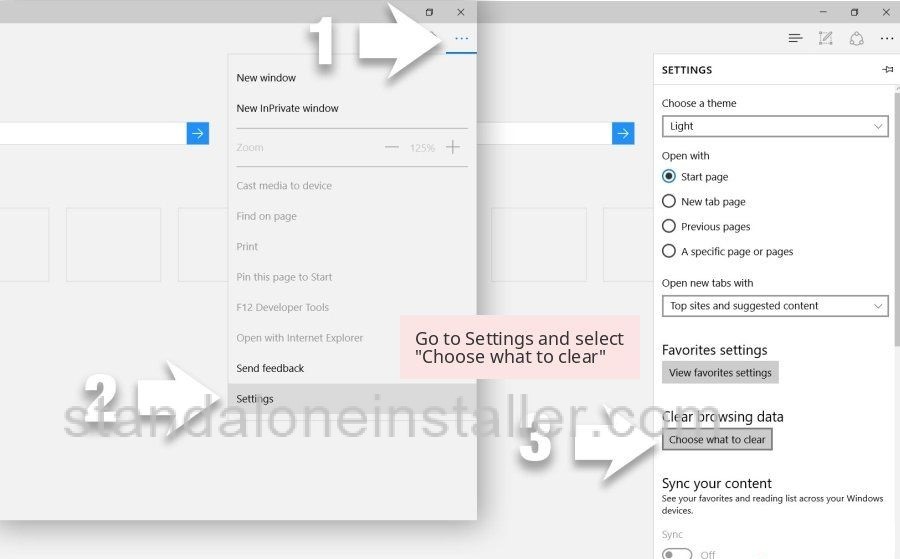
[[ad]] Reset Microsoft Edge settings (Option 1):• Launch Microsoft Edge app and click More
• Click Settings to see additional options.
• When you see Settings window click Choose what to clear button under Clear browsing data option.
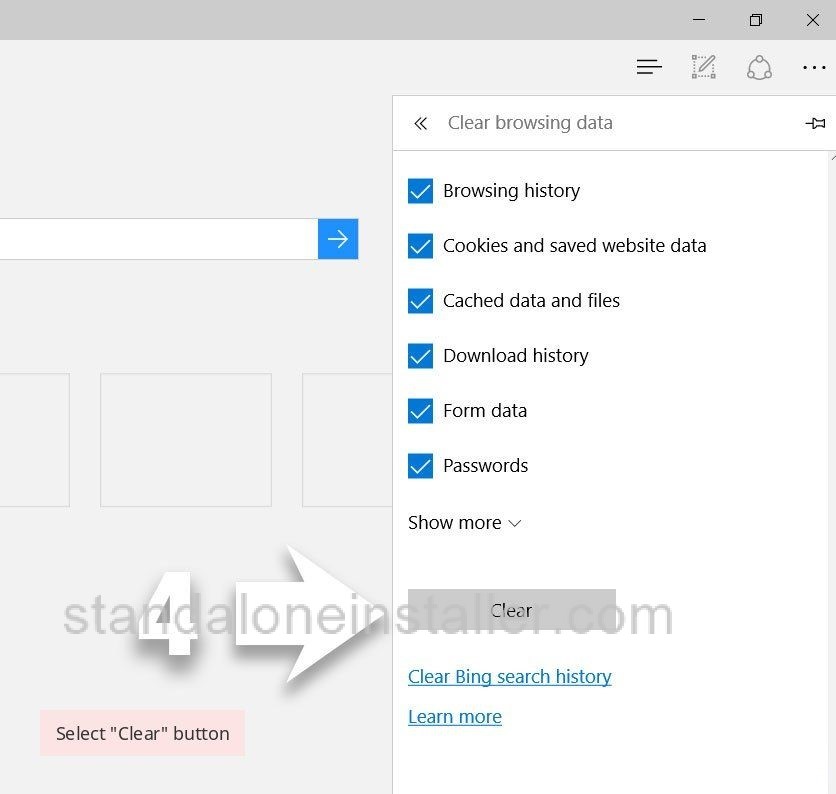
• Choose what you need to get rid of and click Clear.
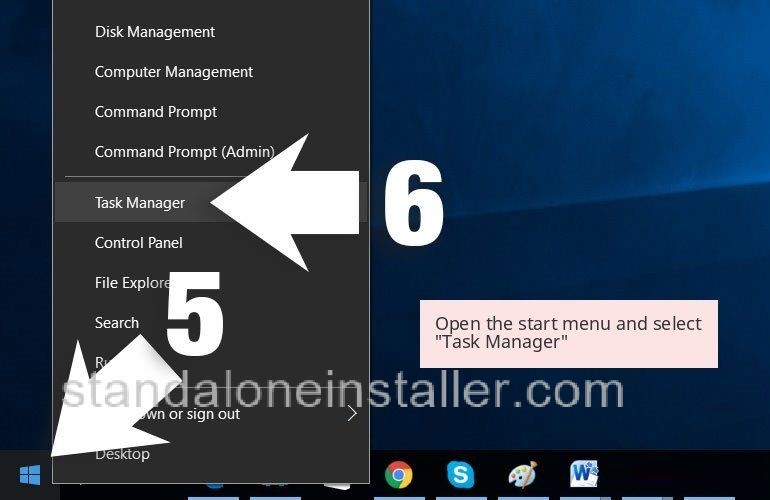
• Right-click on the Start button and choose Task Manager.
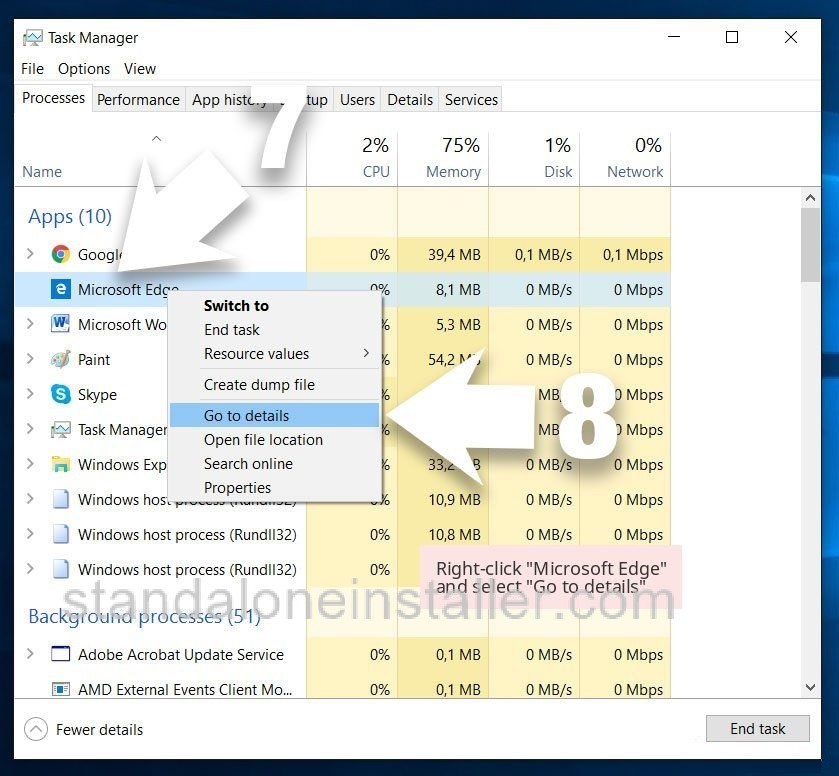
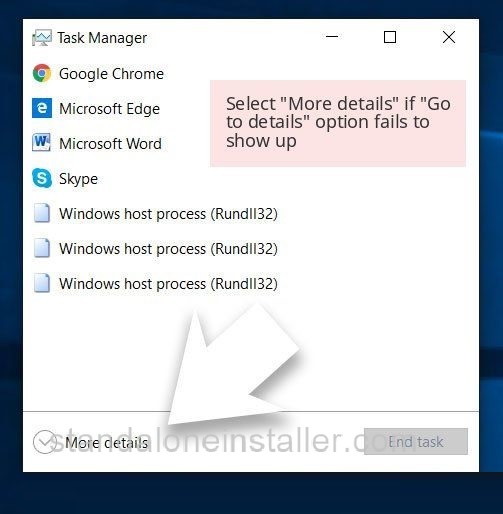
• Search for Microsoft Edgein Processes tab. Right-click and select Go to details option. If can’t see Go to details option, click More details and repeat previous steps.
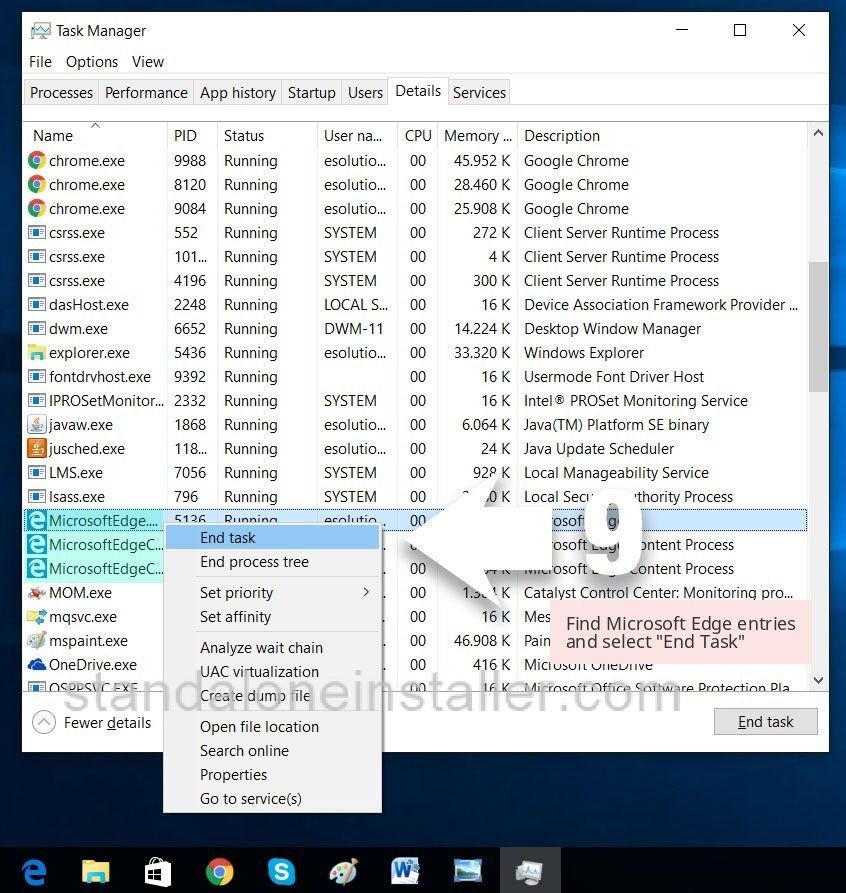
• When you see Details look for all entries with Microsoft Edge name in it. Right click on each and choose End Task.
Resetting Microsoft Edge browser (option 2):
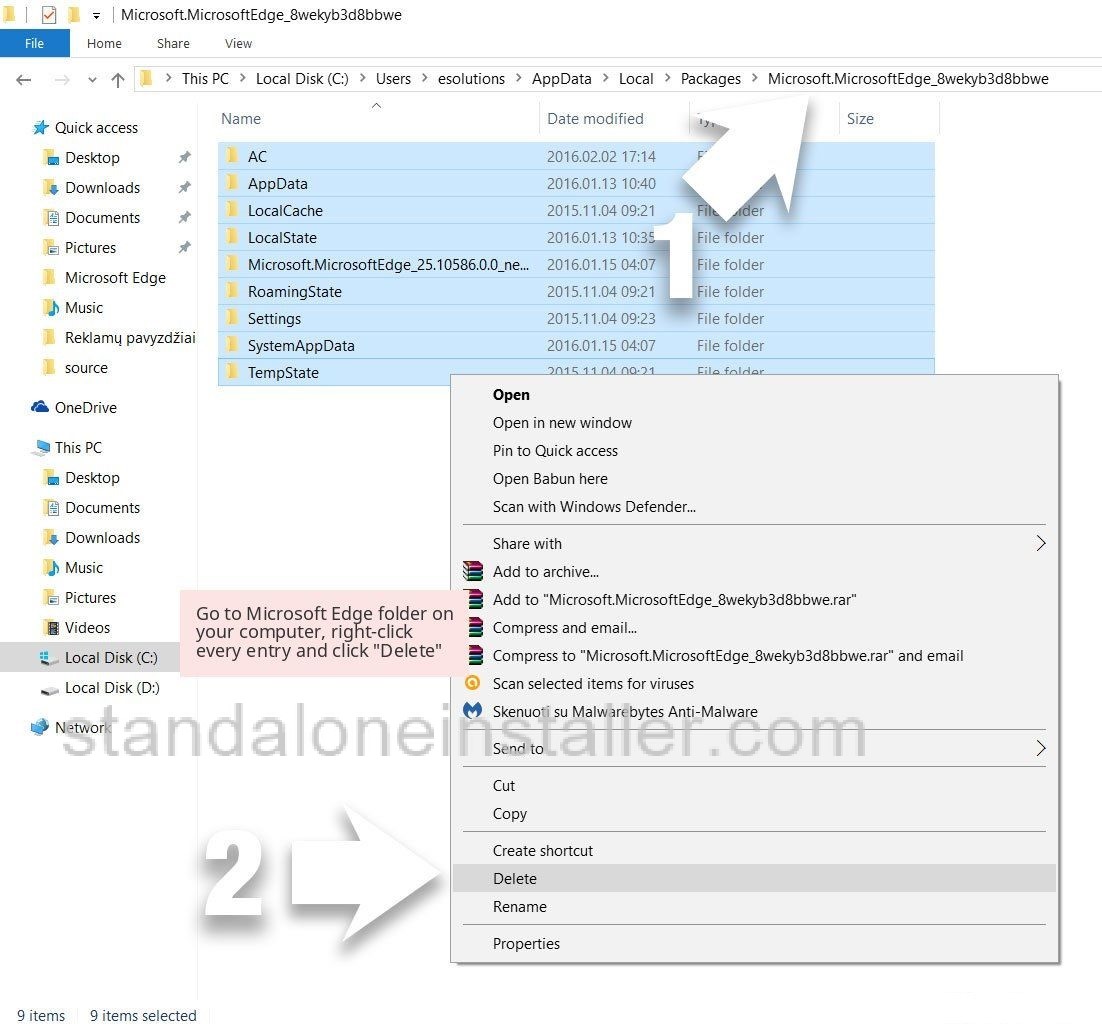
• Look for folder on your system: C:\Users\%username%\AppData\Local\Packages\Microsoft.MicrosoftEdge_8wekyb3d8bbwe.
• Select every entry saved on it and right click. Delete option.
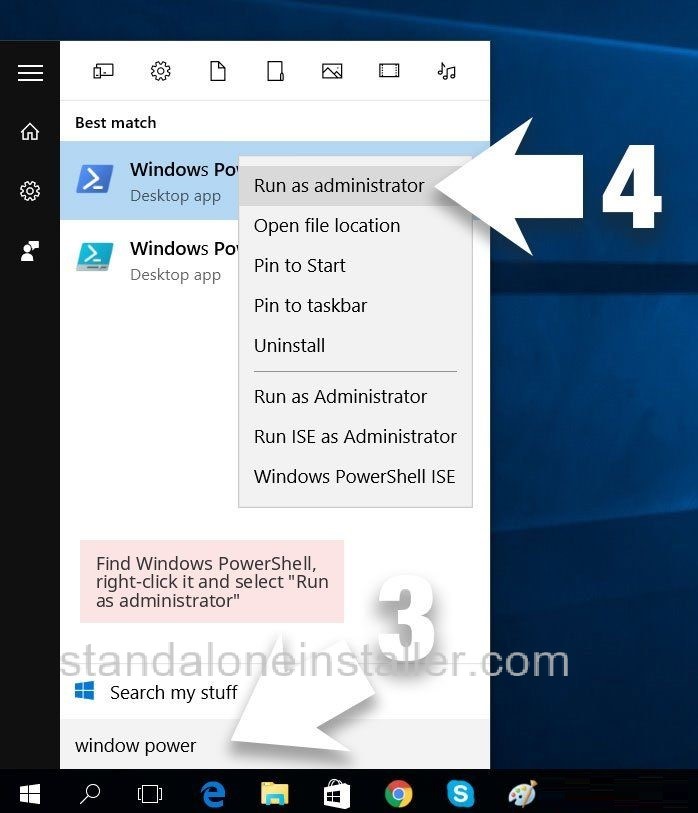
• Click the Start button and type in window power in Search my stuff line.
• Right-click the Windows PowerShell entry and select Run as administrator.
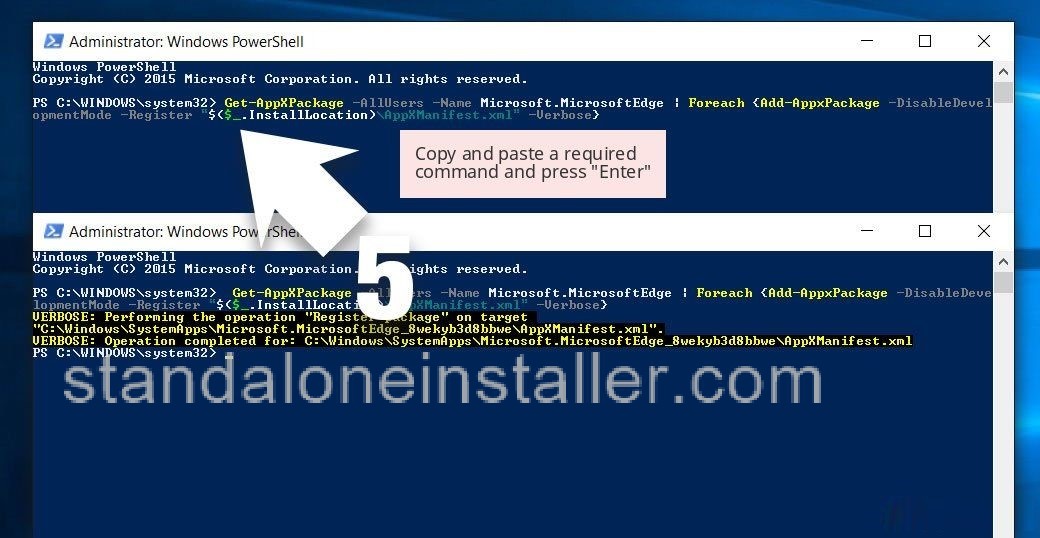
• Once Administrator: Windows PowerShell window appears, paste after PS C:\WINDOWS\system32> and press Enter: Get-AppXPackage -AllUsers -Name Microsoft.MicrosoftEdge | Foreach {Add-AppxPackage -DisableDevelopmentMode -Register $($_.InstallLocation)\AppXManifest.xml -Verbose}
Search.searchetg.com virus removal from Mozilla Firefox
This virus can be eliminated after locating it and removing it from the list of your browser extensions. Check all the recently installed extensions and remove that appear to be harmful.
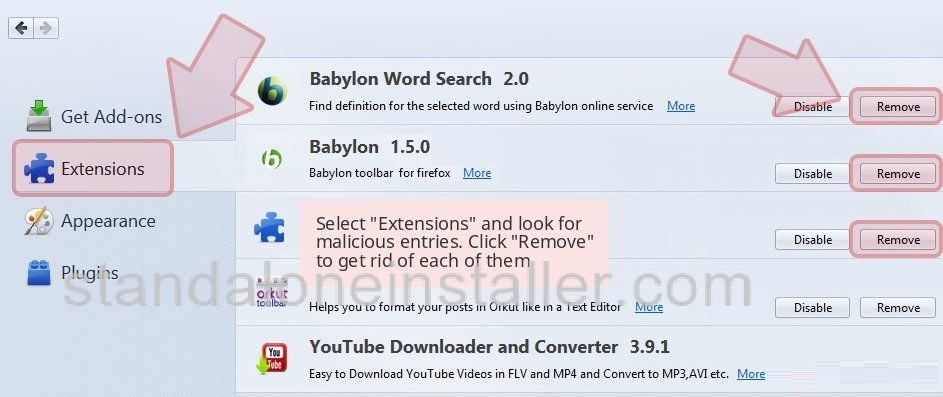
Open Mozilla Firefox and click on the menu icon. Choose Add-ons Extensions.
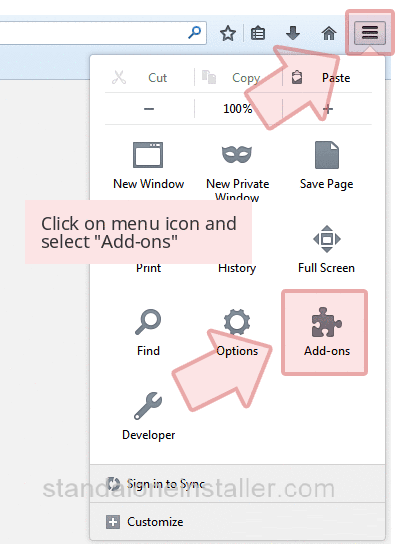
Select Search.searchetg.com and other suspicious plugins. Click Remove.
Change your homepage
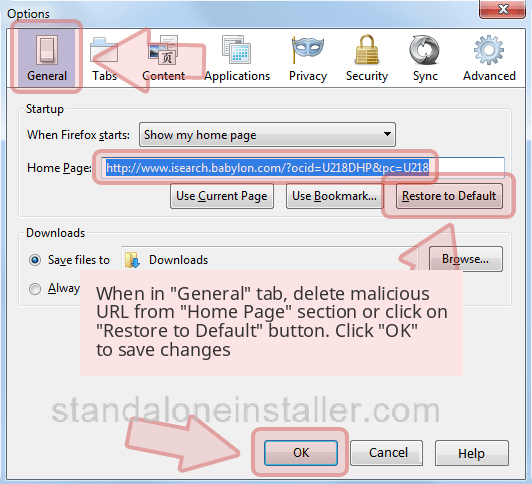
• Click on the menu, select Options ? General.
• Remove malicious URL and enter preferable website
• To save changes, click OK.
Reset Firefox
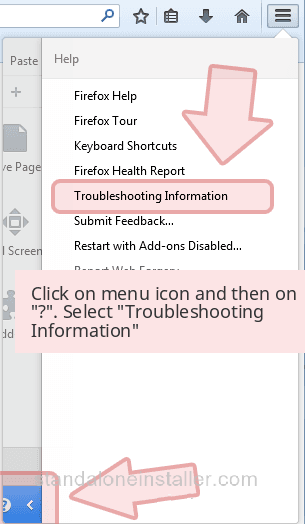
• Click on the Firefox menu and click on the question mark. Select Troubleshooting Information.
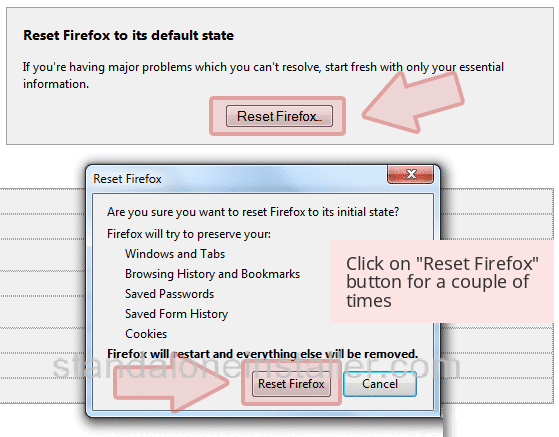
• Reset Firefox with Reset Firefox button. Click it number times.
Search.searchetg.com virus removal from Google Chrome
Open the list of your browser extensions and find the recently installed ones. If any of these look unwanted, remove them.
Delete malicious plugins• Open Google Chrome and click on the menu icon. Choose Tools ? Extensions.
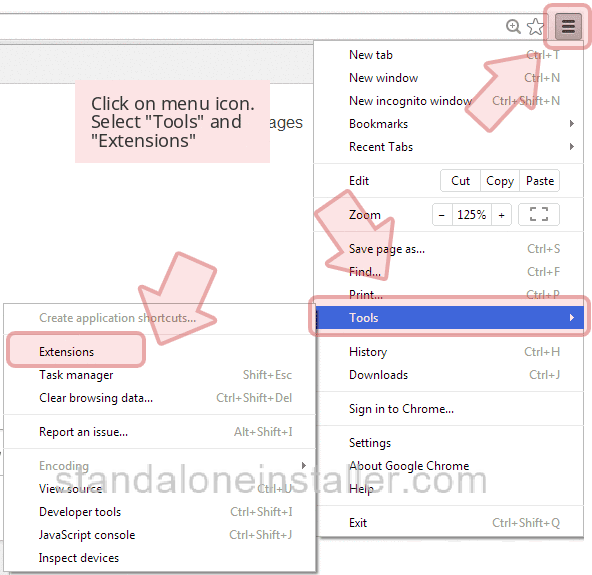
• Choose Search.searchetg.com and other doubtful plug-in. Choose trash icon to remove.
Change your homepage and default search engine
• Click on menu and select Settings.
• Find the Open a particular page or set of pages under on startup option. Click on Set pages.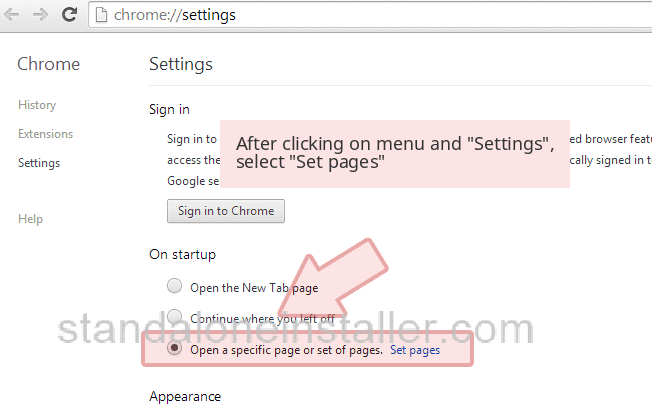
• When another window will appear remove malicious search websites. Enter the site of your choice.
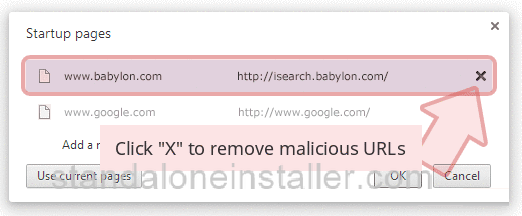
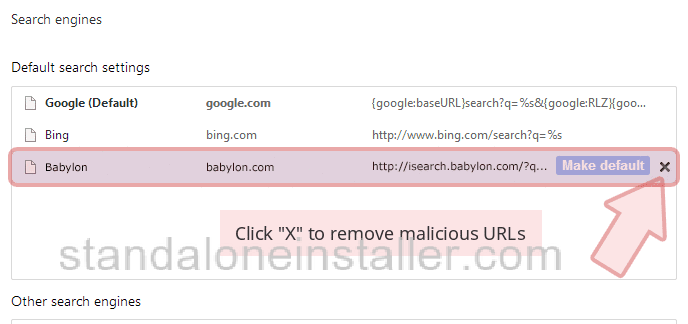
• Click on menu icon once more and select Settings ? Manage Search engines below the Search section.
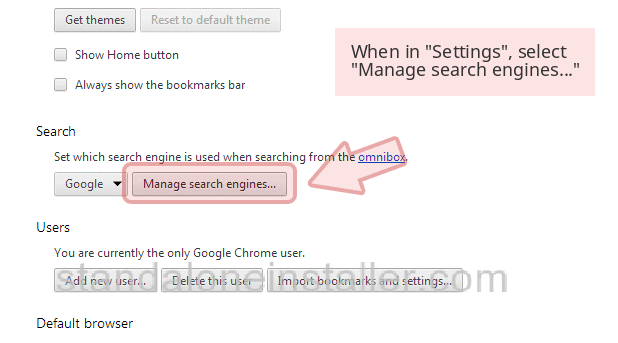
• When in Search Engines...get rid of nasty search sites.
Reset Google Chrome
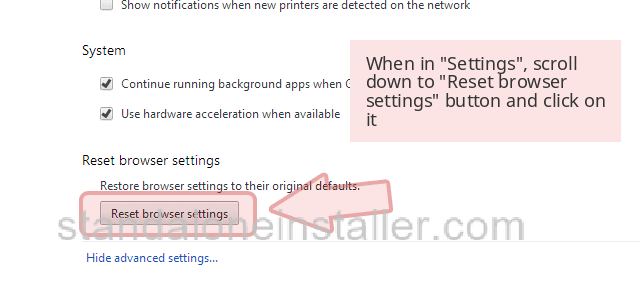
• Click on menu icon and choose Settings.
[[ad]]• Go down the page and click on Reset browser settings.
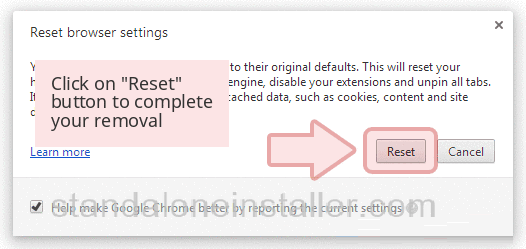
• Click Reset to verify and complete Search.searchetg.com virus removal.
These guidelines will certainly help you in your Search.searchetg.com virus removal mission. Happy safe surfing!