How to Add / Change / Delay / Disable Subtitles in VLC Media Player?
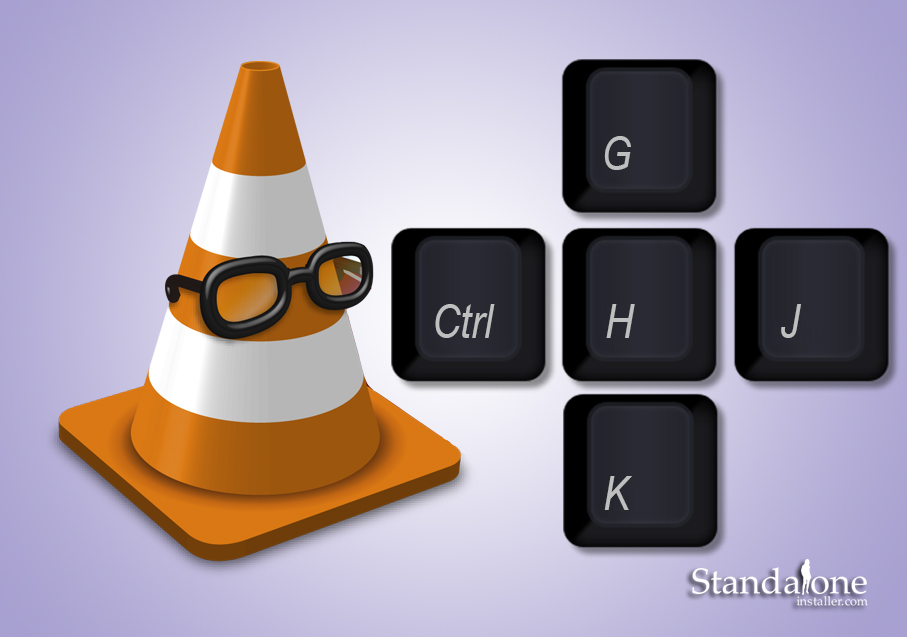
Figure 1: VLC Keyboard Shortcuts (Hotkeys)
(adsbygoogle = window.adsbygoogle || []).push({});
There is an Interesting Feature in VLC Media Player That you can easily Add, Change or Disable Subtitle Languages in VLC Media Player.
Note: Make sure you have subtitle File for your video file.
For Example, I have Two (2) Subtitle Languages and “Sample.mkv†is your video file.
- [English_Subtitle].srt
- [Indonesian_Subtitle].srt
Follow these steps to add a new subtitle in video file.
Step 1: Open your video file by double click on it.
Step 2: Open “Subtitle” Option from Menu.
Step 3: Select “Add Subtitle File”.
Alternative: Press keyboard Shortcut [Alt + T + S].
Acutally by Pressing Alt You will see Highlighted secound “t” of “Subtitle” menu and S in “Add Subtitle File”.
Step 4: A window named “Open Subtitles” will be opened from where you can browse your subtitle file.
Step 5: Locate and select your subtitle File.
Subtitle File Extension Support in VLC Player:
There are numbers of extensions support to VLC in which (.SRT, .SUB + .IDX) are most popular. The (.SRT) Subtitle file Extension contain only a single language whereas (.SUB + .IDX) that contains multiple subtitle file languages up to (32).
Step 6: Then press Open Button.
Step 7: You will see a Notification “Subtitle Track Added”.
How to remove subtitles from vlc.
In the following step you will learn How easy to Hide / Remove Subtitle in VLC.
Step 8: Press  [V] button to Show, Switch, or Remove Subtitles from VLC.
Congrats, You have successfully added a Subtitle Language.
Repeat All above Steps to add another Subtitle Language. I’m Adding another one in VLC that is Indonesian language Subtitle. Press [V] button to Show, Switch, or Hide Movie Subtitles. Watch the Complete Video on Youtube.
Note: Burned-in subtitles can’t be changed.
How to customize subtitle delay in VLC Media Player:
You can easily Increase or Decrease VLC Subtitle Delay of Playing Video by pressing keyboard shortcuts [G] / [H].
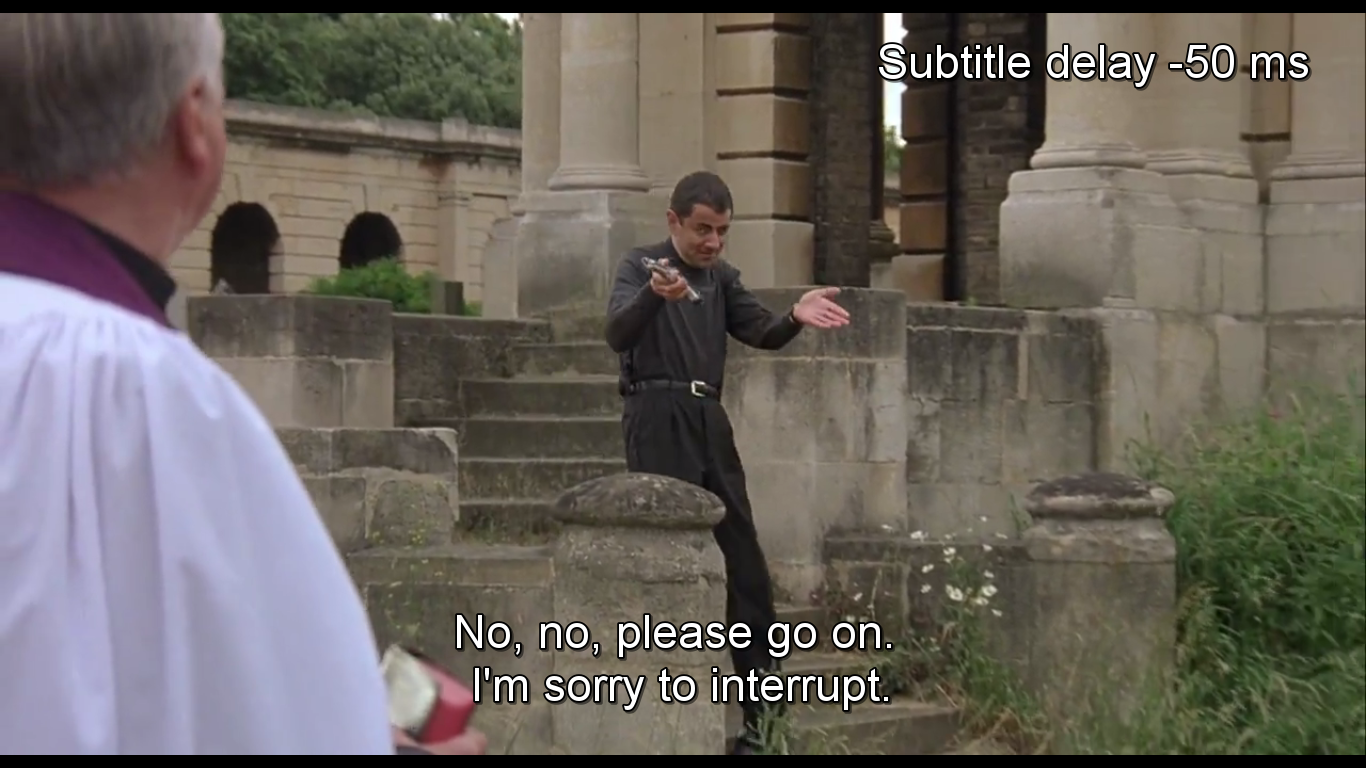
Figure 2: Press [G] To Decrease VLC Subtitle Delay for 50ms
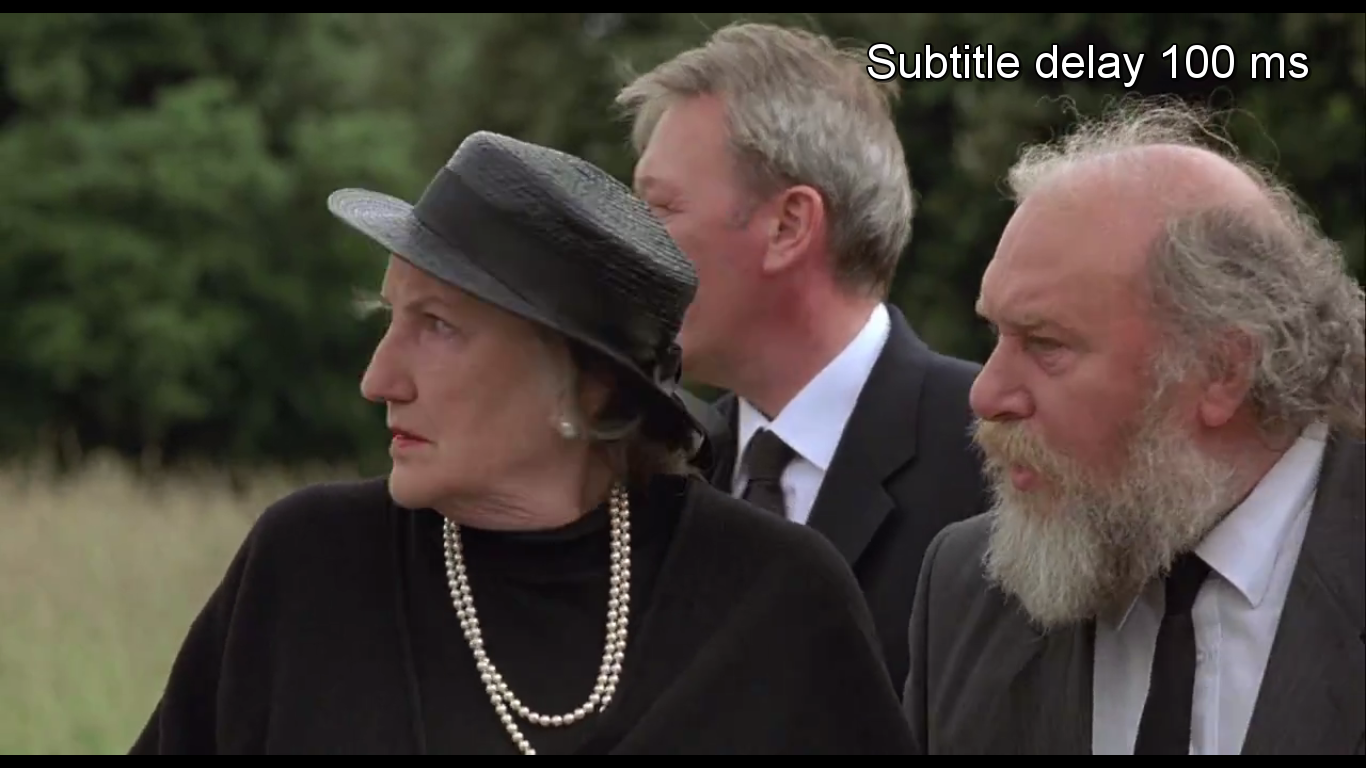
Figure 3: Press [H] To Increase VLC Subtitle Delay for 50ms
How to Capture Screenshot In VLC Player:
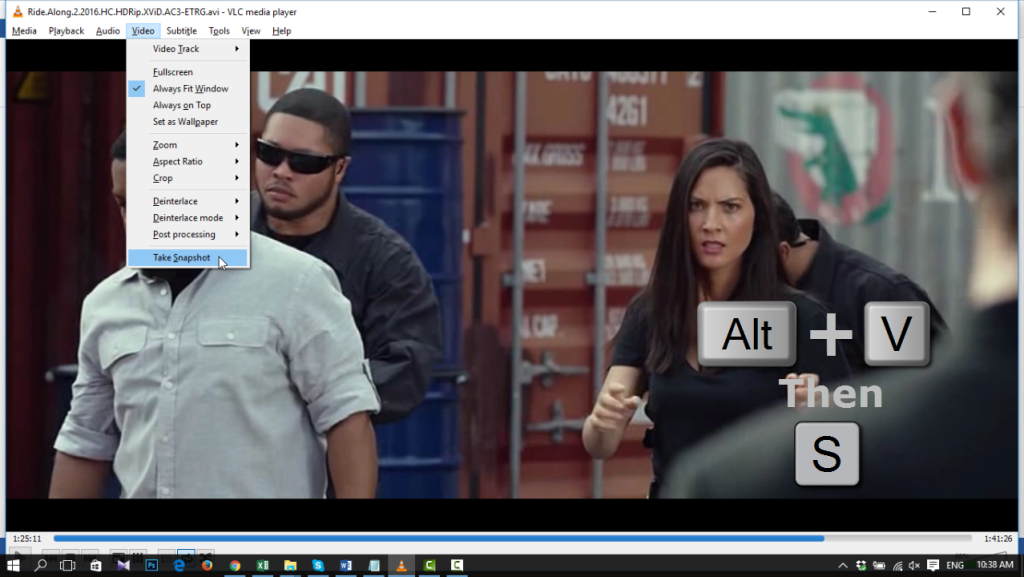
- Open > Video From main menu of VLC media Player.
- Select “Take Snapshot†from drop down list.
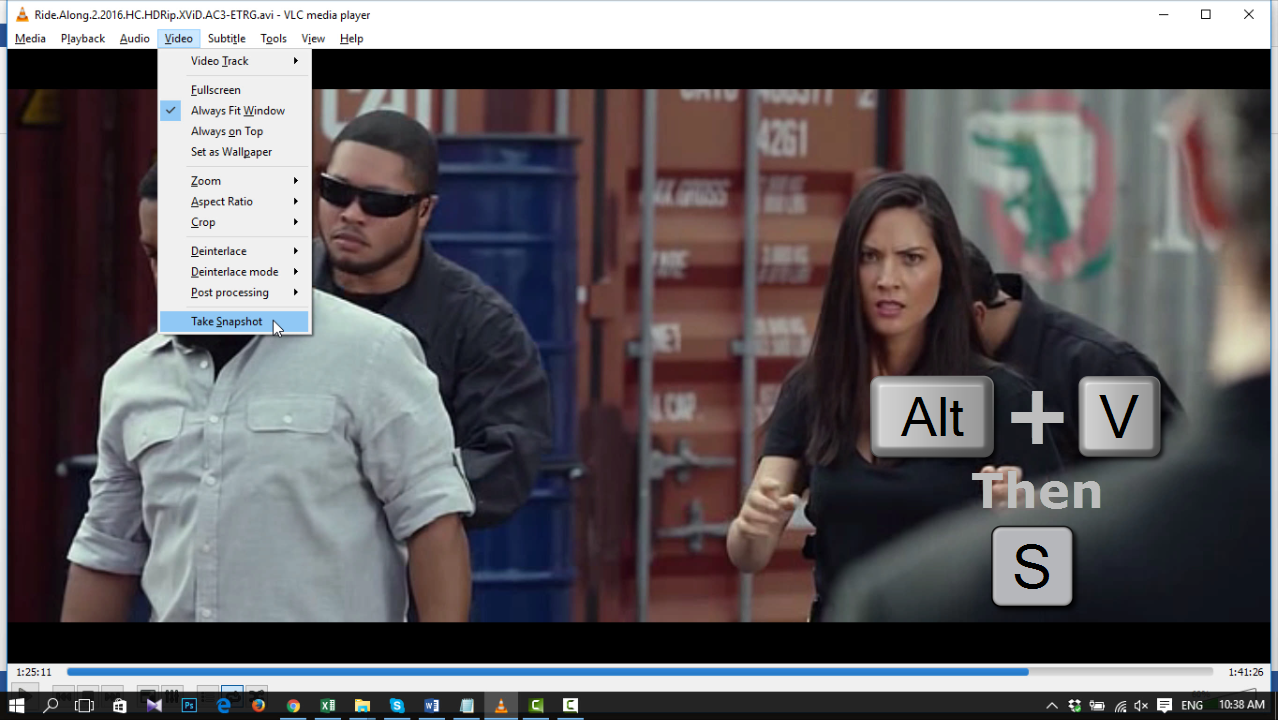
Figure 4: Take Snapshot in VLC by Frame
Alternative: [Alt + V + S] is a shortcut Key to take a Snapshot in VLC.
See the Following Table for All VLC Keyboard Shortcuts (Hotkeys)
KEYBOARD SHORTCUTS |
FUNCTIONS |
Audio PlayBack |
|
| [M] | Mute On/Off |
| [Ctrl] + [V] | Enter URL or Path to the Media You Want to Play |
| [Ctrl] + [Up arrow] | Volume Up |
| [Ctrl] + [Down arrow] | Volume Down |
General Shortcut Keys |
|
| [T] | Show Time Played/Time Left |
| [Ctrl] + [T] | Go to Time |
| [Ctrl] + [M] | Open Messages |
| [Ctrl] + [W] | Empty Now Playing List |
| [Ctrl] + [G] | Extended GUI |
| [Ctrl] + [S] | Open Media |
| [+] | Play faster |
| [-] | Play slower |
Video Playback Shortcut Keys |
|
| [Space] | To Play/pause |
| [S] | To Stop |
| [Ctrl] + [O] | Select One or More Files To Open |
| [Ctrl] + [F] | Open Directory |
| [Ctrl] + [D] | Open Disk |
| [Ctrl] + [N] | Open Network Stream |
| [P] | To Play Previous Item |
| [Shift] + [Left Arrow] | Very Short Backwards Jump On 3 Seconds |
| [Shift] + [Right Arrow] | Very Short Forward Jump On 3 Seconds |
| [Alt] + [Left arrow] | Backwards Jump On 10 Seconds |
| [Alt] + [Right arrow] | Forward Jump On 10 Seconds |
| [Ctrl] + [Left arrow] | Medium Backwards Jump On 1 Minute |
| [Ctrl] + [Right arrow] | Medium Forward Jump On 1 Minute |
| [Enter] | To Play Selected file |
| [Z] | Change Zoom Mode |
| [E] | Frame by Frame Playback |
| [G] / [H] | Increase or Decrease Subtitle Delay |
Manage VLC, Playlists and Special Commands |
|
| [Ctrl] + [H] | Hide / Unhide Controls |
| [Ctrl] + [P] | Preferences / Interface settings |
| [Ctrl] + [E] | Adjustments and audio / Video Effects |
| [Ctrl] + [B] | Edit Bookmarks |
| [Ctrl] + [C] | Open Capture Device |
| [Ctrl] + [L] | Open / Hide Playist |
| [Ctrl] + [Y] | Save Playlist |
| [Ctrl] + [I] | Current Stream and Media Information |
| [Ctrl] + [J] | Media Information: Information about what your media or stream is made of. Muxer, Audio and Video Codecs, Subtitles are shown. |
| [ALT] + [A] | Open Audio Menu |
| [ALT] + [H] | Open Help Menu |
| [ALT] + [M] | Open Media Menu |
| [ALT] + [P] | Open Playist Menu |
| [ALT] + [T] | Open Tool Menu |
| [ALT] + [V] | Open Video Menu |
| [ALT] + [L] | Show Playback Menu |
| [D] | Toggle Deinterlace |
| [N] | Play Next Track From Playlist |
| [F1] | Show Help |
| [F11] | Switch Window From / To Full-Screen Mode |
| [F] | Full Screen Mode |
| [ALT] + [F4], [ALT] + [M] + [Q] or [Ctrl] + [Q] | Quit Program |
| [V] | Show, Switch, or Hide Movie Subtitles |
| [Ctrl] + [f] | Open Folder [Browse Folder Menu] |
| [Ctrl] + [r] or [Ctrl] + [s] | Advanced Open File |
| [A] | Change Aspect Ratio |
| [B] | Change audio / Language Track |
| [C] | Crop Video Screen |
| [Escape] | Exit Full Screen Mode |
Control VLC Playback Speed |
|
| [J] and [K] | Increase or Decrease Audio Delay |
Mouse Actions |
|
| Scroll up/ down | To Control Volume increase / Decrease |
| Double Click on Video | Full Screen Mode |
(adsbygoogle = window.adsbygoogle || []).push({});
If you didn’t have installed VLC previously we recommend you to Download Virus Scanned VLC Media Player